
Check your Fire TV model and supported installation options
Open the device information screen and record the model name and software version. Keep this information with your subscription details. Fire TV Stick, Fire TV Cube, and televisions with Fire TV software are related products, but that does not mean every app or installation method works on all of them. Start by checking the Amazon Appstore on your device for the desired player and reviewing its publisher information.
Do not enable developer settings simply because an old tutorial begins with that step. Store installation should be your first route when the required app is available. If the app is missing, ask its developer whether your exact model is supported. Some devices may restrict installation from external sources. If the necessary option is absent or the device rejects the package, stop and confirm compatibility instead of downloading a succession of unofficial installers.
Gather the details you need before using the remote
Prepare the Wi-Fi password, Amazon account access if needed, your chosen player's official instructions, and the account details supplied by drago iptv. Check which login method the player accepts. An M3U setup uses a playlist URL; a server, username, and password setup uses separate fields; a portal configuration may require a device identifier. Entering a playlist URL into a server field without checking the instructions can cause an otherwise valid account to fail.
Keep credentials in a private password manager or another secure location. Remote keyboards are slow, so verify capitalization and punctuation before beginning. Do not send your account password into a public help group. If a QR code or phone-assisted input feature is offered by the legitimate app, confirm the destination before scanning or entering sensitive data. A setup helper should not require unrelated financial or identity information.
Compare current screen plans or follow the installation guide.
Install from the device store when possible
From the Fire TV home interface, use search or the application area to locate the player. Read the app description and publisher name, then install the appropriate result. If several similarly named apps appear, compare them with the developer's own website. Open the application after installation and review any activation or trial terms. An app download marked free can still have a separate charge for advanced features or continued use.
Keep the application easy to find by adding it to your preferred position in the app list when the interface supports that action. Before entering your playlist, explore the settings for language, time zone, and parental controls. Setting these options early makes later guide checks easier. If the app does not open or returns immediately to the home screen, update the device, check available storage, and consult the app developer before purchasing a player license.
External installation requires a verified source and supported device
For compatible Fire OS devices, a developer may publish an Android package outside the store. Only use an installer linked by the real application developer and confirm that it is intended for your device. Amazon's developer documentation describes developer options and installation workflows, including differences between software versions. Those instructions are designed for supported devices and do not establish that every consumer Fire TV product permits external installation.
If the official installation guide uses Downloader, obtain that utility from the device store and grant installation permission only where your model allows it. Enter the developer's exact download address rather than a code found in an anonymous video comment. Review the requested permissions before continuing. Remove an installation file when it is no longer needed and disable unnecessary installation permissions afterward. You do not need to leave network debugging enabled for ordinary viewing.
Add your drago iptv access details carefully
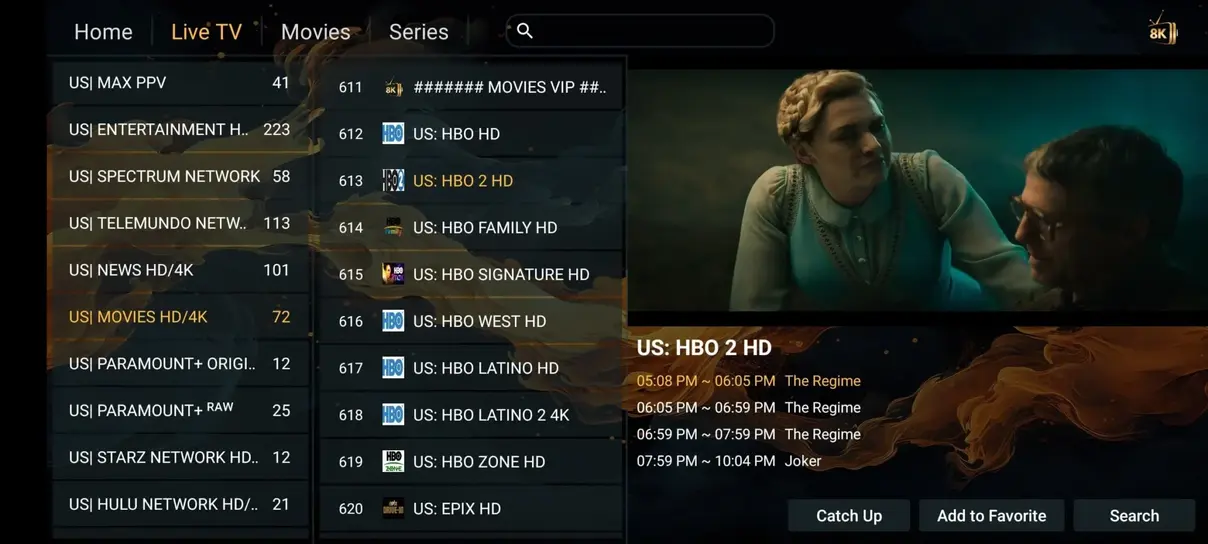
Open the player and choose the login option that matches your account instructions. Give the playlist a recognizable label, such as your household name or viewing location, without including a password in the label. Enter each value exactly as supplied. Distinguish the numeral zero from the letter O, avoid adding spaces, and preserve the URL scheme if one is provided. Save the configuration and allow the initial playlist import to finish.
If the player uses a device identifier or activation portal, use the identifier shown inside that specific application. Do not assume it is the same as the hardware network address listed in system settings. Follow the developer's official activation process and keep account information private. If an import fails, capture the error text and ask support to confirm the account status and correct login method before deleting and recreating the configuration repeatedly.
Load the guide, favorites, and household controls
After channels appear, load the electronic program guide if the player requires a separate refresh. Set the time zone to match your location and inspect programs whose start times you can independently recognize. A guide shifted by several hours may indicate a time-zone setting or source-data issue. Avoid changing multiple offsets at once; note the original setting so you can return to it if the change makes the problem worse.
Build a short favorites list instead of scrolling through the entire catalog each evening. Add a mix of the channels your household actually watches and hide unwanted categories where the player permits it. Set a parental PIN before handing the remote to children. Test whether the restriction remains effective after the app is closed and reopened. A tidy initial setup helps everyone find content and makes support conversations more precise when a particular item does not work.

Compare current screen plans or follow the installation guide.
Test picture, sound, and network performance separately
Begin with a normal HD stream, then test a higher-resolution item if your device, television, and account support it. Confirm that audio plays through the intended TV speakers or sound system. If the picture works but sound does not, inspect the audio-track selection and device audio settings before assuming the stream is unavailable. Different formats can behave differently across televisions and receivers.
For connection testing, the service guidance starts at 10 Mbps for HD and recommends 25 Mbps for 4K. These are planning figures rather than a guarantee for every stream. Other active devices also consume bandwidth. Test near the router or compare Ethernet using supported hardware if Wi-Fi seems unstable. Keep the Fire TV adequately powered and ventilated; avoid relying on an unsuitable television USB port when the device manufacturer specifies its power adapter.
Solve common problems without losing your configuration
When the player reports invalid credentials, compare the supplied details with the fields on screen and confirm that the subscription is active. When the list loads but a single channel fails, test several unrelated channels and record the failure time. When all applications lose connectivity, investigate the home network first. This distinction prevents an account troubleshooting session from being spent on a disconnected router.
For a frozen interface, close and reopen the application, then restart the device if necessary. Check for app and system updates using official menus. Clearing cache can be a different operation from clearing data, which may erase your playlist and settings. Record or securely save the setup before taking destructive troubleshooting steps. Avoid a factory reset as the first response; it removes unrelated apps and preferences and may not address the underlying issue.
Plan for multiple screens and renewal
Count simultaneous streams rather than installed applications. If someone watches on the living room Fire TV while another person streams on a tablet, check that the selected plan permits both connections. A player license can also have its own device limits, independent of the service subscription. Confirm both sets of terms so that replacing hardware or adding a second room does not lead to an unexpected activation charge.
For one screen, the listed drago iptv US prices are $14,00 for one month, $30,00 for three months, $44,00 for six months, and $67,00 for twelve months. The extra month applies only to the twelve-month plan. Review the pricing selector before ordering because different screen counts use different totals. Save the order confirmation and the service start date, and keep any player renewal separate from the television-service renewal in your records.
Ask support with a useful installation summary
A clear support request includes the Fire TV model, software version, player name, login method, and the exact stage where setup stopped. Mention whether the application was installed from the store or from its official developer website. Include the error message and whether another legitimate streaming application works on the same connection. Avoid sending complete credentials in screenshots unless a secure support process explicitly requires them.
Once the setup works, keep a short private checklist of the steps that mattered for your device. Save official help links and note any non-default guide or audio settings. This record is useful when an app update changes the interface or a replacement device arrives. Revisit application permissions periodically and remove players you no longer use. A small amount of maintenance makes the next troubleshooting session considerably easier.