
Identify the operating system before choosing a player
A television brand is not a complete compatibility specification. Record the model number, model year, operating system, and software version before contacting support. Samsung televisions generally use their own application environment, while different manufacturers may sell sets running Google TV, Roku TV, Fire TV, or another platform. An Android installation file cannot simply be copied to every television. Search the store on the actual television instead of assuming that an app seen on a phone is also available on the big screen.
Samsung's support documentation explains that its Smart TVs install applications available through their application store. The normal process is to open Apps, search, select the result, and install it. This makes a store check the sensible first step for Samsung owners. Regional availability and older hardware can still affect the result. If no suitable player appears, an external streaming device connected through HDMI may be more practical than trying unsupported modifications to the television.
A player and an IPTV subscription do different jobs
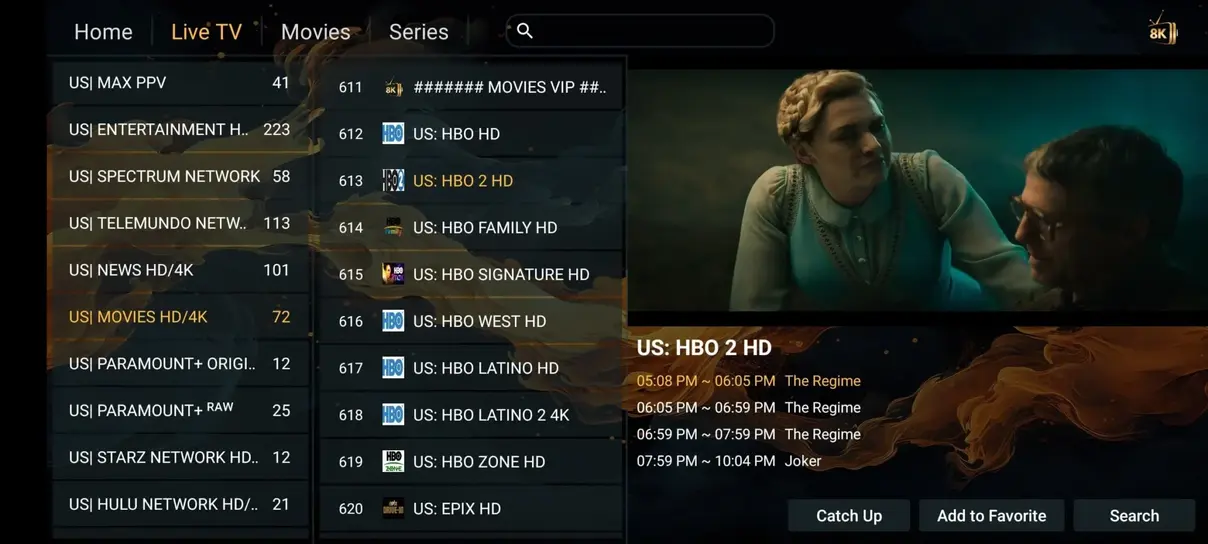
An IPTV player provides the interface: channel lists, navigation, video playback, and sometimes a program guide or parental controls. The subscription or authorized playlist supplies the content and connection details. Paying an app developer does not necessarily purchase access to any channels. Likewise, purchasing a service plan does not automatically include every premium feature of a separately developed player. Keep both receipts and check the renewal terms for each product.
HotPlayer explicitly describes itself as a media player without included channels and states that it is not affiliated with third-party subscription providers. Treat it as an independent application when evaluating drago iptv compatibility. Its official website lists several television platforms and features including favorites, search, sorting, and parental controls. Before activation, confirm the current license terms directly with the developer and verify that the listing on your device comes from the correct publisher.
Compare current screen plans or follow the installation guide.
Create a shortlist around the way you watch
For a household that mostly watches live television, begin with remote navigation. Can you open favorites in a few clicks? Does the back button return to the channel list without ending the app? Are channel names readable from the couch? These everyday details matter more than a long settings menu. Ask a second member of the household to try the interface; a player that only one person understands is a poor fit for a shared television.
For movie viewing, inspect search, subtitle selection, audio tracks, and resume behavior. For scheduled programs, examine the guide layout and time zone settings. A sports viewer may prefer an interface that switches quickly between favorites, but playback speed also depends on the source and network. TiviMate can be researched through its official website as a candidate for compatible Android TV environments. Confirm its current platform requirements and licensing rather than assuming a version exists for Samsung or LG.
Use an evaluation checklist instead of a universal ranking
There is no single best application for every US Smart TV. Make a small comparison sheet containing the exact device, available store listing, supported login method, cost, parental controls, accessibility options, and update history. Add whether the player handles the connection details supplied with your service. An M3U playlist, an Xtream-style login, and a portal-based setup are different ways of configuring access; a player may support some methods but not all.
Where a legitimate trial is available, use it to test the features you actually need. Try a live channel, a movie, subtitles, and the program guide. Restart the television and confirm that the configuration remains available. Test at the time your household normally watches, not only in an empty house during the morning. Keep notes on failures so support can distinguish a device problem from an account or network problem without repeatedly asking you to reinstall everything.
Prepare your home network for the living room
A fast broadband plan does not guarantee strong Wi-Fi behind a television. Cabinets, walls, and the position of the router can affect the connection. If the TV or streaming device supports Ethernet, compare wired playback with Wi-Fi before buying additional equipment. Where wiring is impractical, move the router into a more open position and avoid placing the streaming device directly behind a large metal object.
The service guidance uses 10 Mbps as a starting point for HD and recommends 25 Mbps for 4K, but actual requirements depend on the stream and other household activity. Allow additional capacity when several people watch simultaneously, download games, or join video calls. Measure near the viewing device and test during busy evening hours. A single speed test cannot establish long-term reliability; watch for dropouts, unstable latency, and repeat buffering across multiple services.
Configure privacy and parental settings first
Playlist URLs can contain usernames, passwords, or account tokens. Treat them like login credentials. Do not paste them into public forums, online playlist validators, or screenshots posted on social media. If support needs a screenshot, crop or obscure credentials first. Use official app websites and device stores, and avoid installers advertised as premium unlocked or modified versions. A familiar logo alone does not establish the identity of a download source.
Set parental controls before sharing the television with children. Check both the player settings and the television settings because they may protect different parts of the experience. Hide unwanted categories where supported, choose a PIN that differs from an obvious default, and test access after restarting. An adult category should never be treated as an unavoidable part of the home screen. Ask support about content controls and account options before purchasing if those restrictions are important to your household.

Compare current screen plans or follow the installation guide.
Match the screen allowance to simultaneous viewing
Installing an application on several devices does not necessarily permit all of them to stream at the same time. Count the screens that will be active together: a living room TV, a bedroom TV, and a tablet could require three concurrent connections. A single-screen plan may still be useful when you alternate between devices, but check the account terms. Do not assume a multi-screen plan also grants unrestricted redistribution or sharing outside the permitted use.
The listed US single-screen drago iptv plans are $14,00 for one month, $30,00 for three months, $44,00 for six months, and $67,00 for twelve months. Only the twelve-month plan includes one extra month. Review the live pricing selector for the requested number of screens and currency before sending an order request. App activation costs, broadband charges, and optional extras should be considered separately when deciding which setup fits your budget.
Troubleshoot one variable at a time
If the player opens but no channels appear, verify the login format and credentials before changing network settings. Copying a URL with a trailing space or missing character can stop an import. If channels appear but one category fails, test a different channel and record the affected names. If everything buffers, compare another legitimate video service on the same device and then test a wired connection if available.
Avoid repeatedly clearing application data before recording your configuration. Clearing cache and deleting account data are different actions. Save the necessary details securely, then follow the developer's instructions for updates or a clean reinstall. When contacting drago iptv, include the device model, app name and version, connection type, error message, and whether the problem affects one item or the whole playlist. This gives support a useful starting point without exposing your password.
Make the final choice with a short household test
Before committing to a longer subscription, write down the channels or program categories that matter most and ask about their current availability and authorized distribution in your location. A large catalog count does not establish that a specific local station, sports event, language track, or catch-up window is included. Test remote navigation with everyone who will use the service and check that subtitles and parental controls behave as expected.
Then complete a simple evening routine: turn on the television, open the player, find a favorite, inspect the guide, and resume a movie. If those steps are straightforward, the player is likely a better fit than an alternative with more unused features. Keep the developer's support page and your service instructions bookmarked. A documented, repeatable setup is easier to maintain when the television updates or you replace a remote.